Android
Works on Android 10 or later. Screens show GESTO 1.3.1; system screens look a little different on each phone.
First setup
-
1 Start without an account
The first time you open the app you see the sign-in screen. Tap Continue without account to start right away. To keep gestures in step across devices, continue with Email or Google instead.

-
2 Allow display over apps
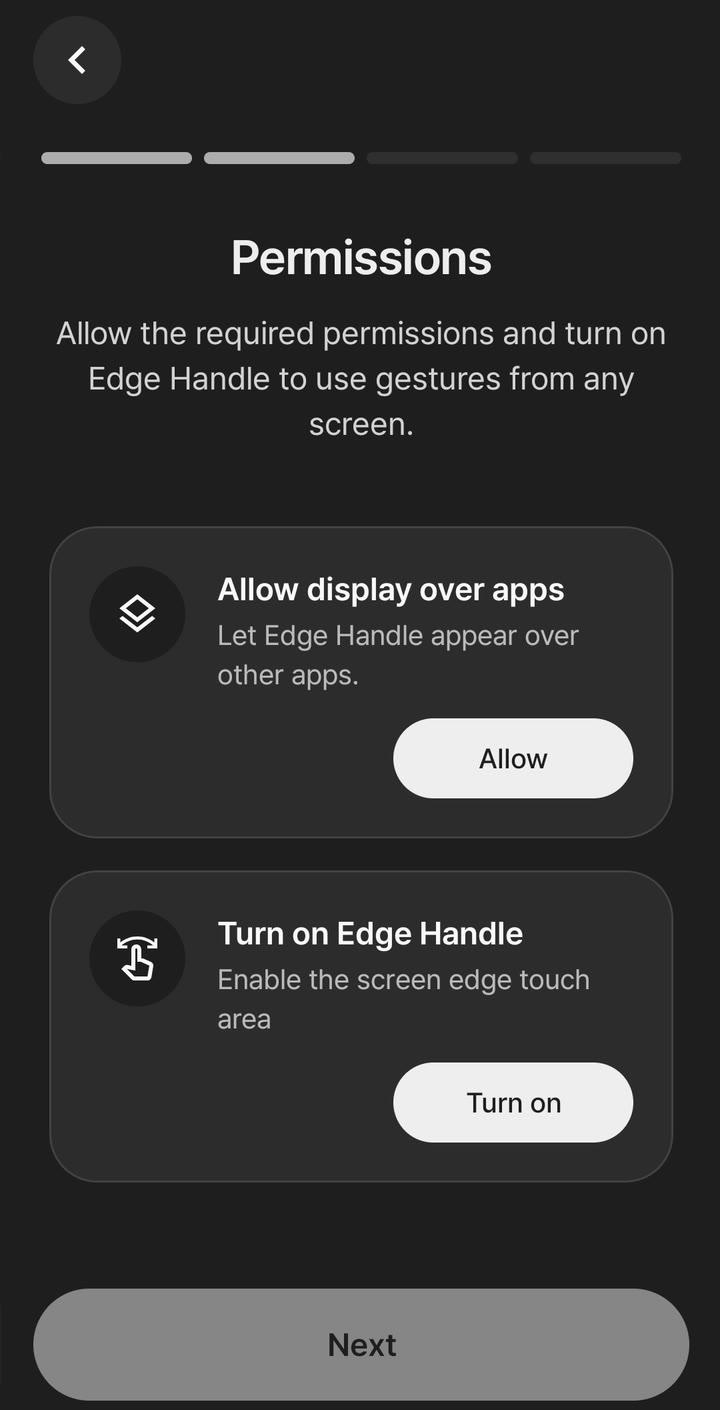
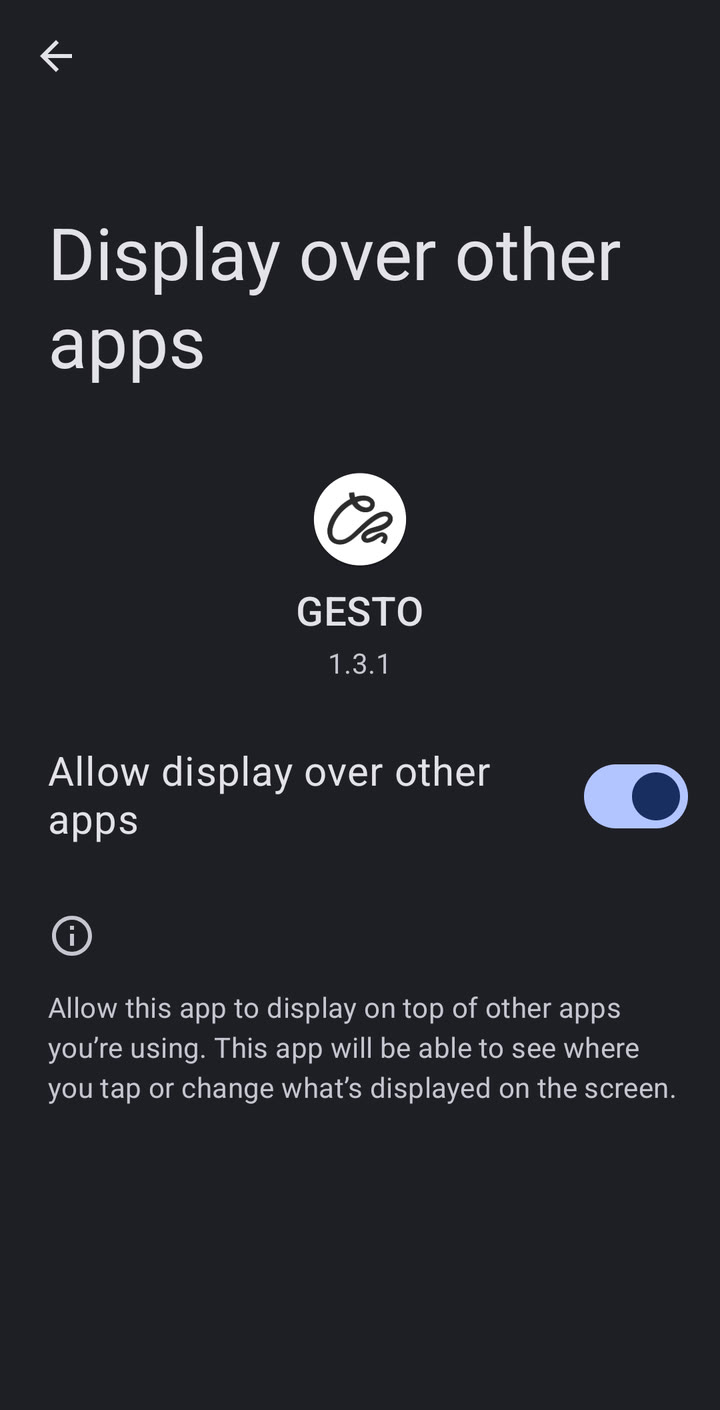
On the Permissions screen, tap Allow on the Allow display over apps card. When system settings open, turn on Allow display over other apps for GESTO and come back. This is the only permission GESTO asks for.
-
3 Turn on the edge handle
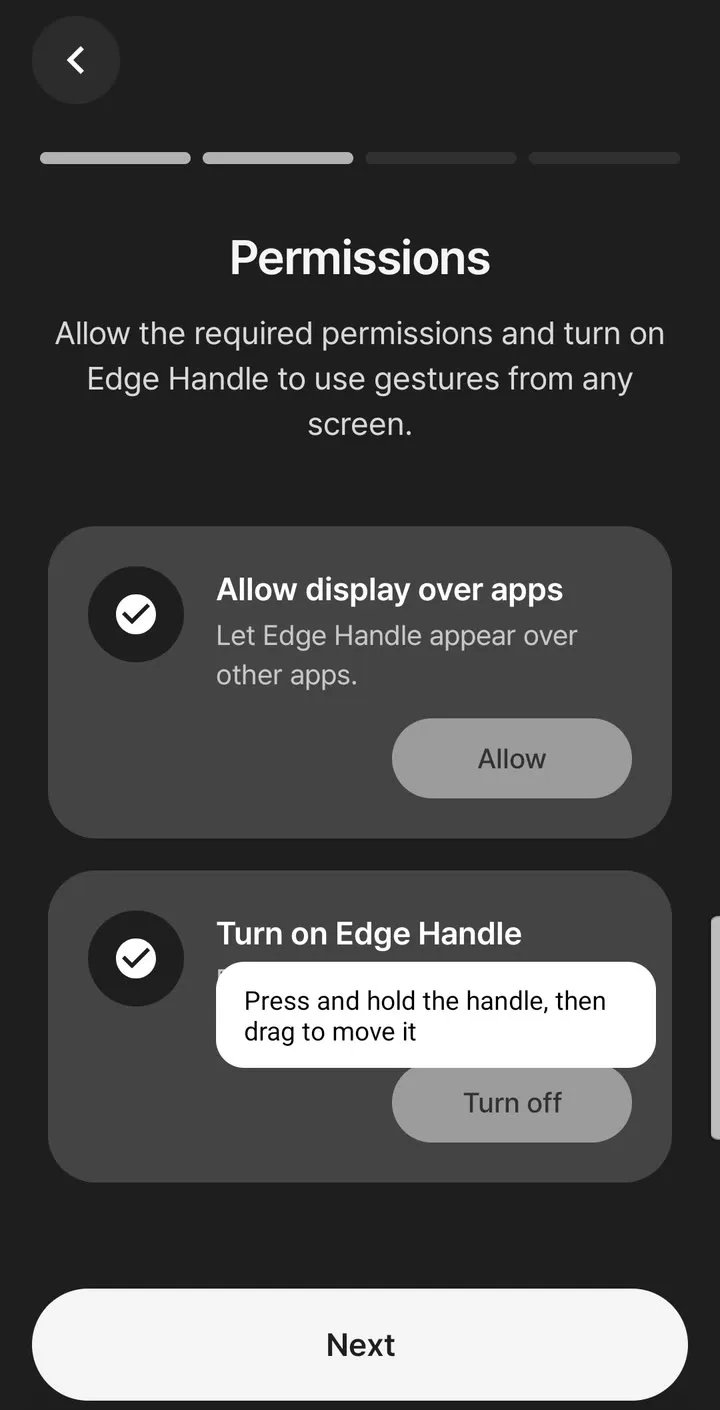
Tap Turn on on the Turn on Edge Handle card and a thin handle appears on the right edge of your screen. When both cards show a check mark, tap Next.
-
4 Trace your first gesture
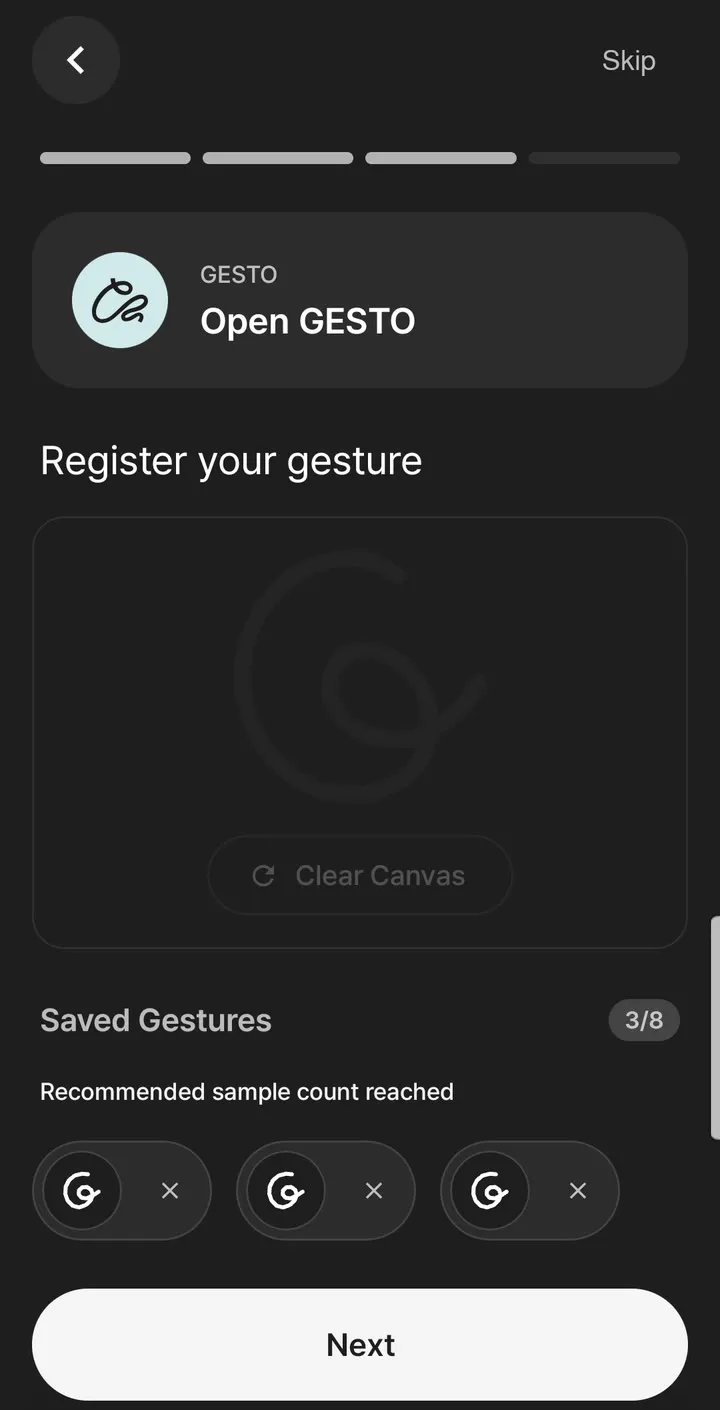
Trace the Open GESTO gesture along the guide on the board. Each drawing saves when you lift your finger. Draw it at least 3 times for more reliable recognition (up to 8).
-
5 Pull the handle to try it
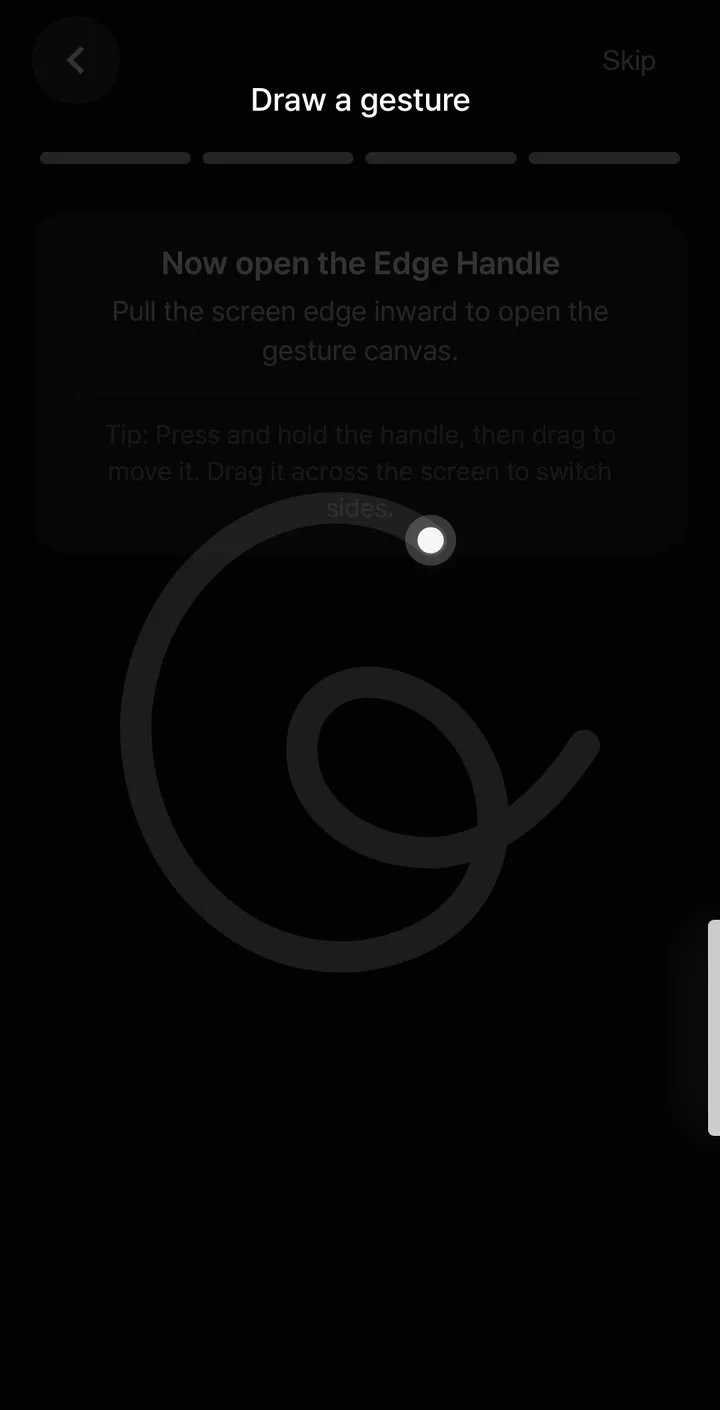
Pull the handle on the edge of the screen inward to open the gesture canvas. Draw the shape you just saved; when GESTO opens, you're all set.


Create a gesture
-
1 Open the create screen
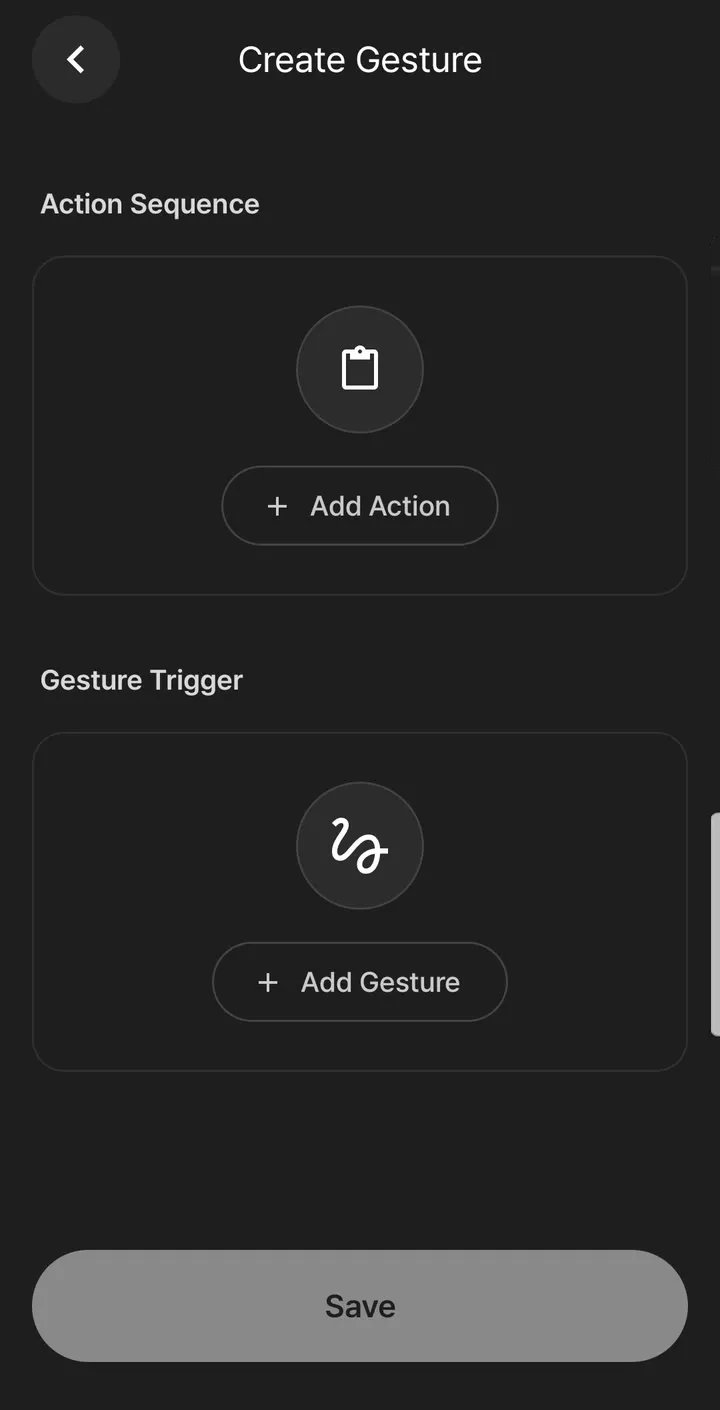
On the Gestures tab, tap + in the top-right corner to open Create Gesture. Action Sequence at the top holds what runs; Gesture Trigger below holds the shape you draw.
-
2 Choose what it runs
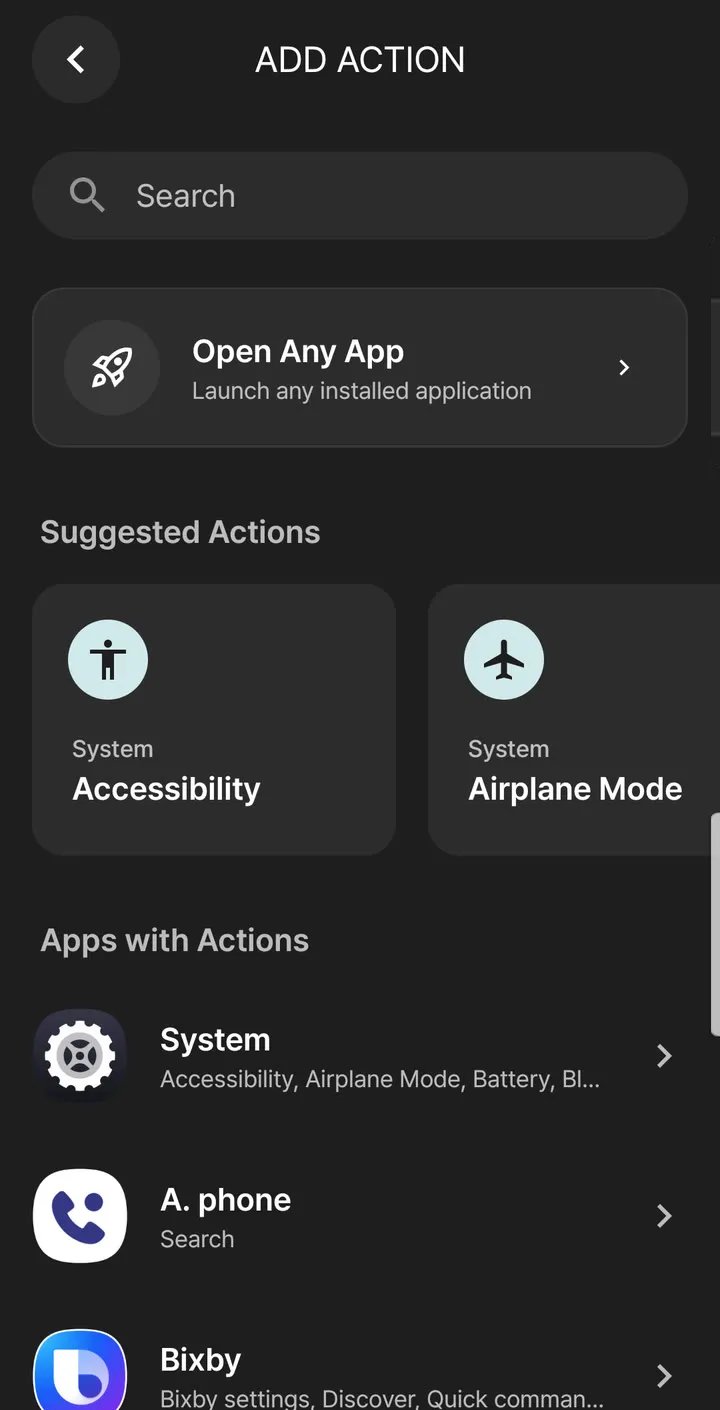
Tap Add Action, then pick an app under Open Any App. Settings screens like Wi-Fi, Bluetooth, and brightness live under System in Apps with Actions. You can also pick shortcuts that apps provide; those open only when GESTO is your default Home app.
-
3 Draw the shape
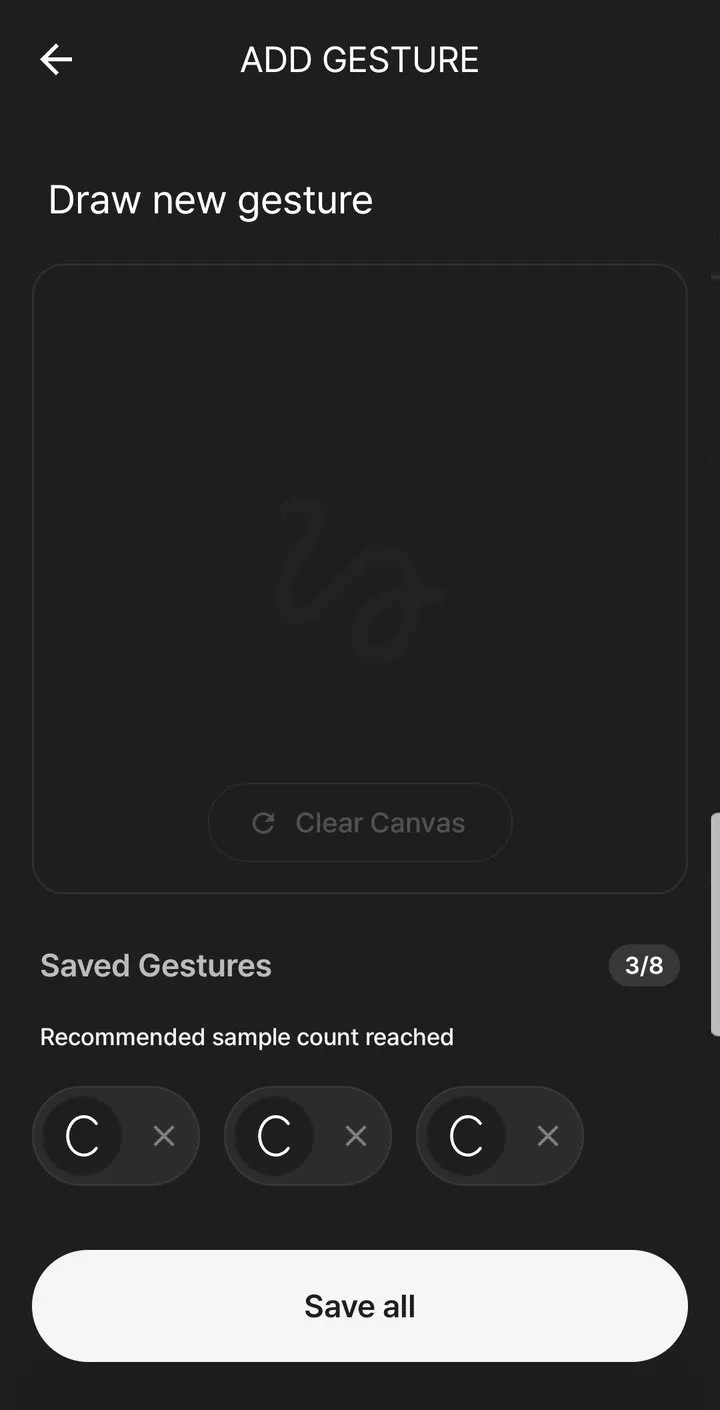
Tap Add Gesture under Gesture Trigger and draw the same shape at least 3 times. Each drawing saves when you lift your finger. Tap Save all, then Save on the Create Gesture screen.
-
4 When a gesture looks similar
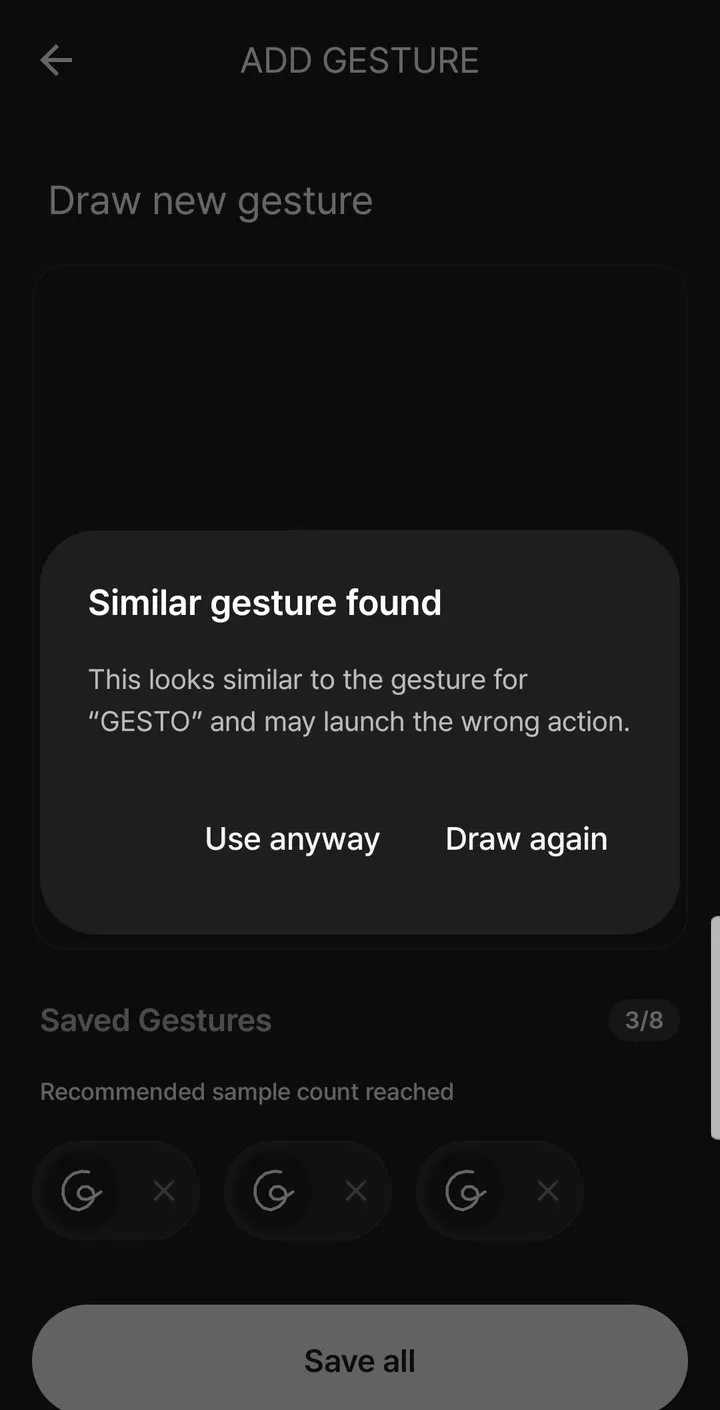
If the shape looks like one you already have, you see Similar gesture found. Drawing it could open the wrong app, so tap Draw again and pick a shape that looks less alike.


Draw to open
-
1 Pull the handle and draw
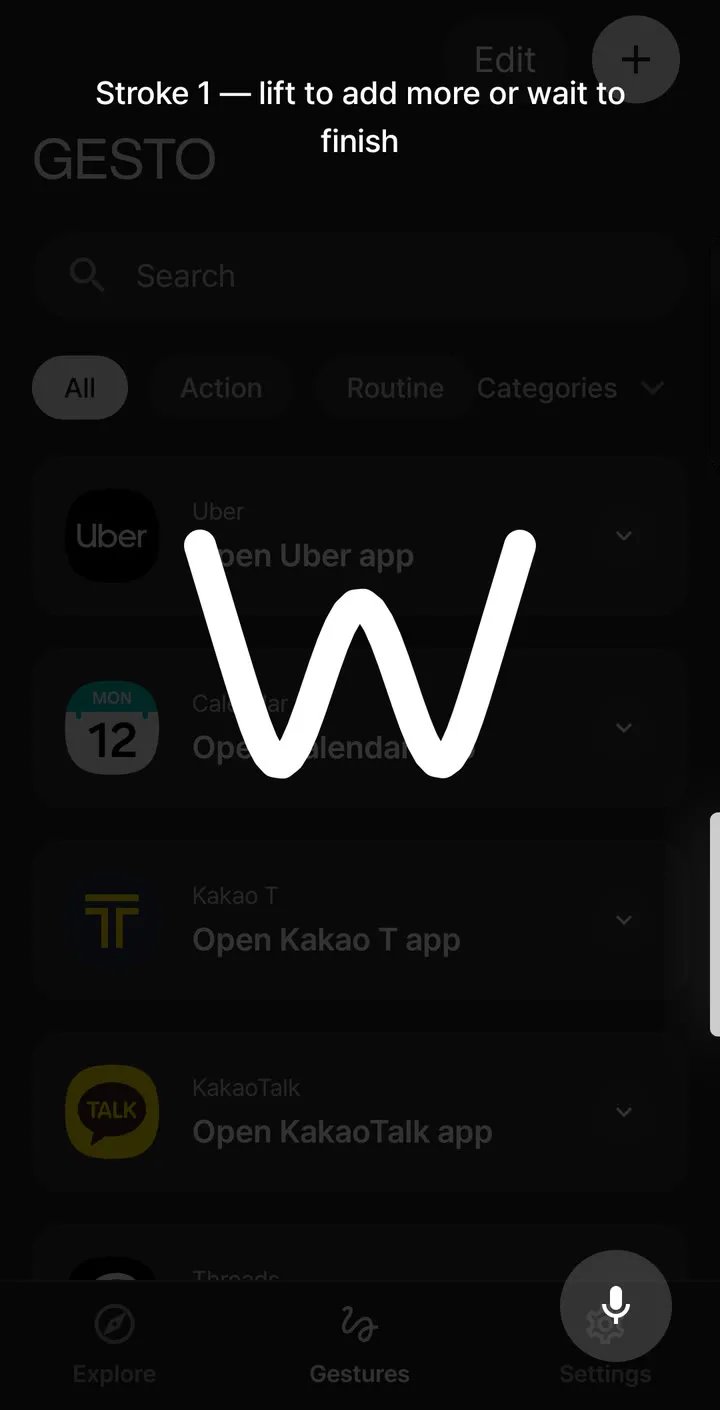
In any app, pull the handle inward and draw right on top of the screen. Lift your finger and the app you linked opens a moment later. For letters with several strokes, lift and keep drawing right away.
-
2 When nothing matches
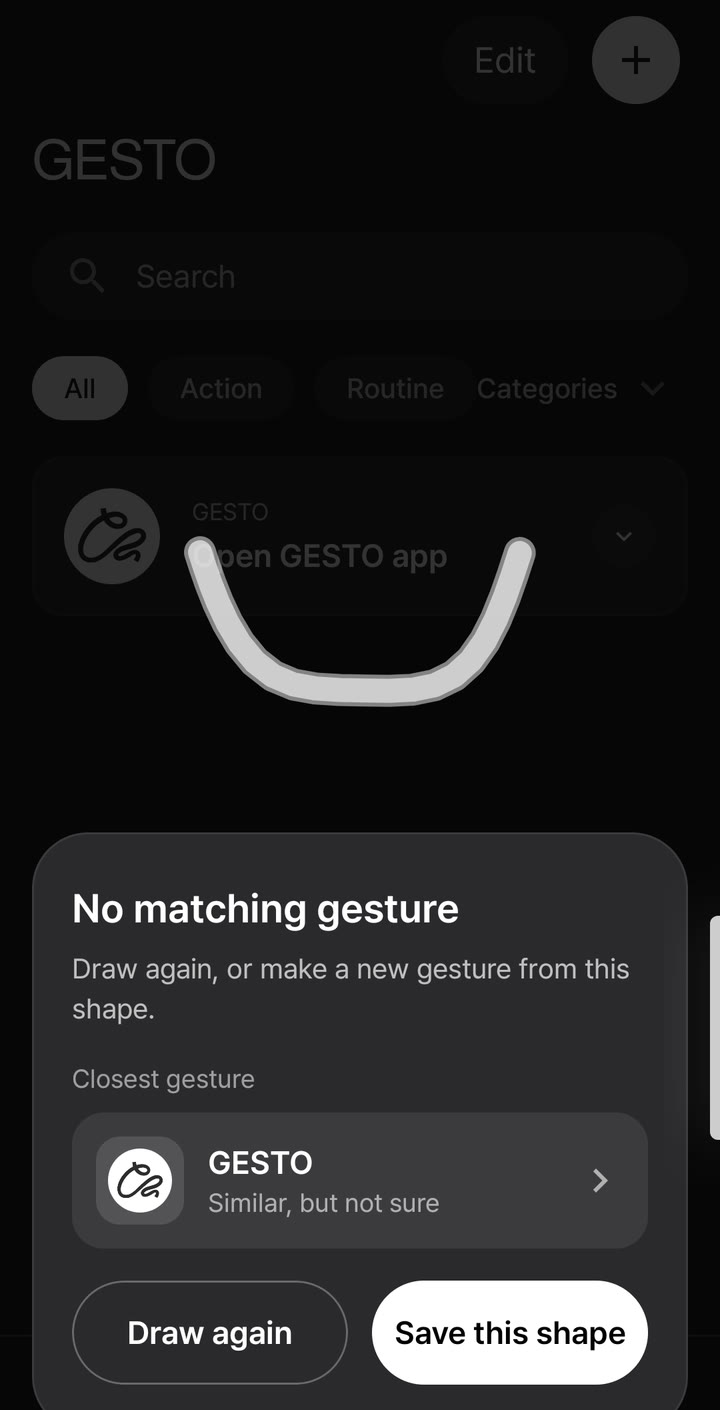
If you see No matching gesture, tap Draw again, or tap Save this shape to make a new gesture from what you just drew. When several gestures look alike, Tap an app to open shows buttons to choose from.
-
3 Open by voice
Tap the mic button at the bottom of the canvas and say an app name to open it.


Manage gestures
-
1 Find, edit, and delete
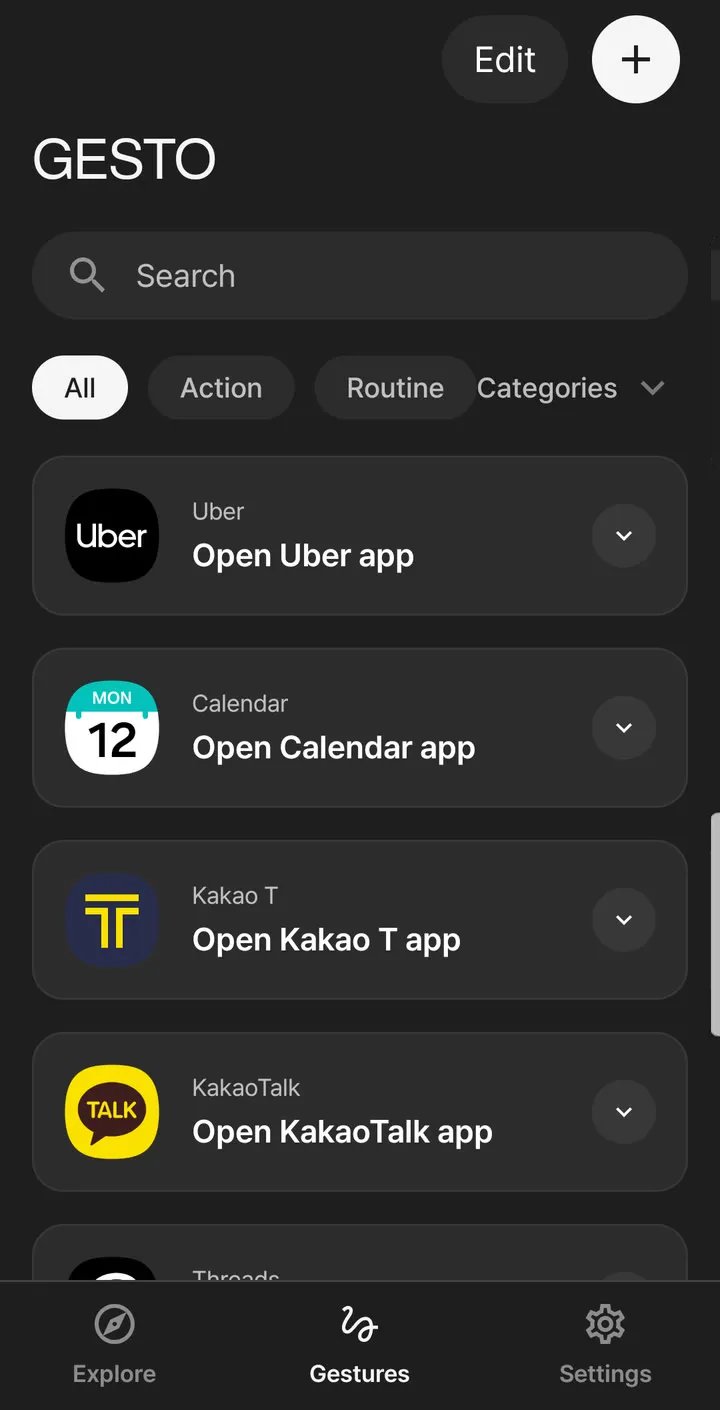
On the Gestures tab, search or filter by All, Action, and Routine. Tap a card to see its saved shapes and redraw them with Manage Gestures. Tap Edit in the top-right corner to change or delete gestures; right after deleting, Undo brings one back.

Routines and app pairs
-
1 Build a routine
In Create Gesture, tap Add Action two or more times to make a routine that runs several actions in a row. Tap a step and use Delay before this step to wait before it runs.
-
2 Make an app pair
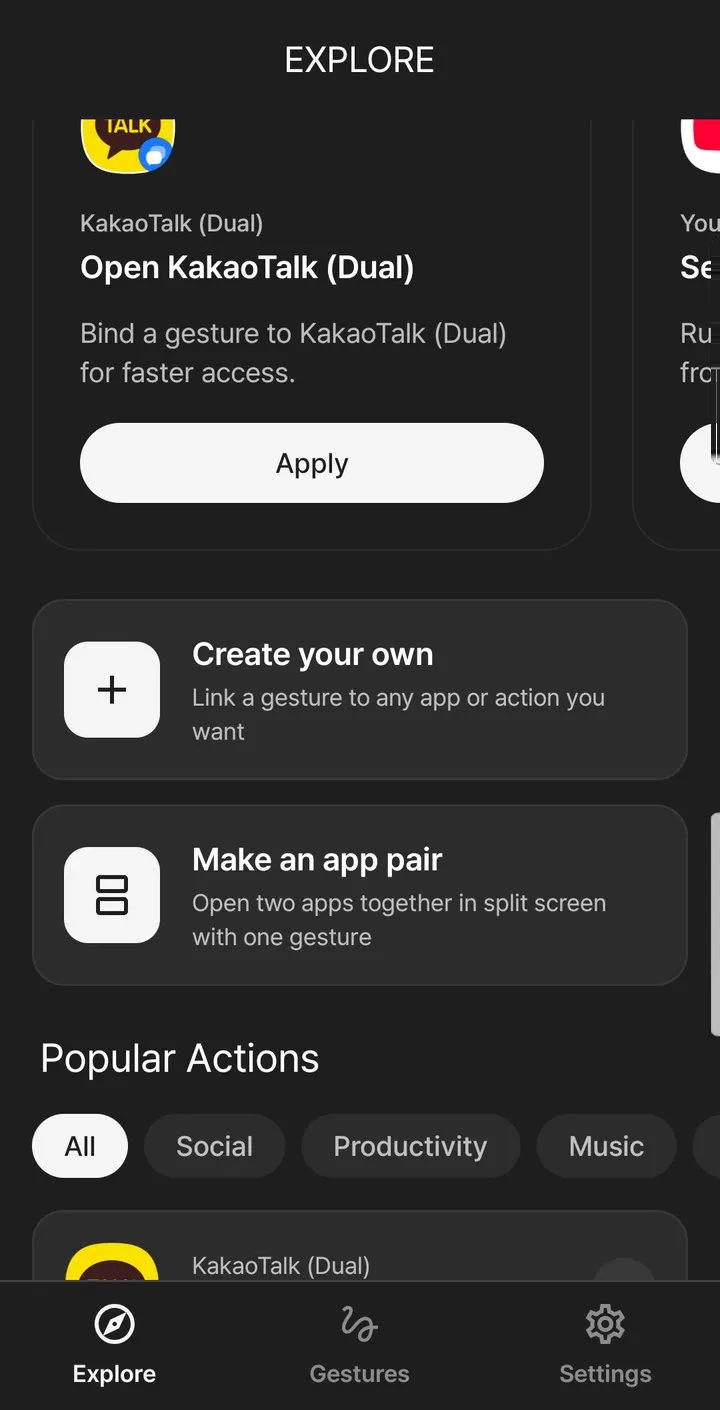
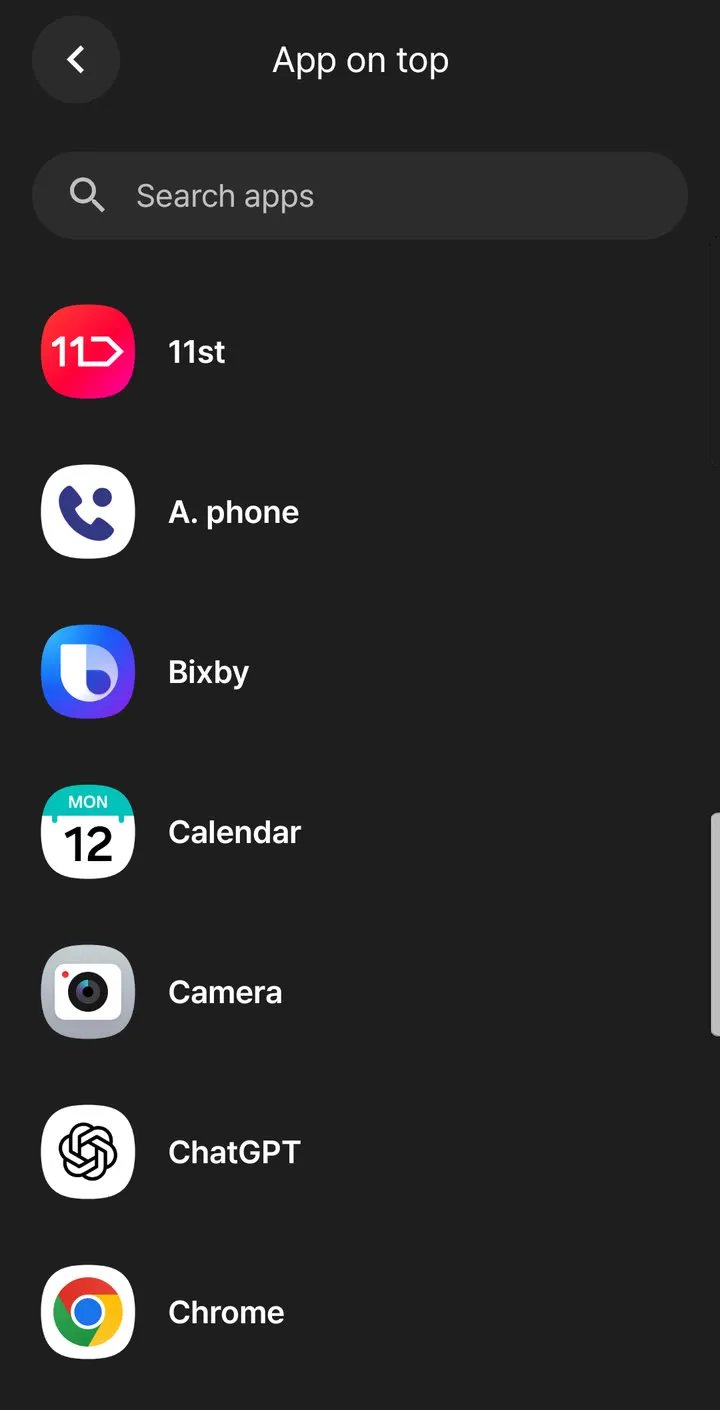
On the Explore tab, tap Make an app pair, then choose App on top and App on bottom. One gesture then opens both apps together in split screen. It shows on Android 13 or later.


Handle settings
-
1 Position, size, and transparency
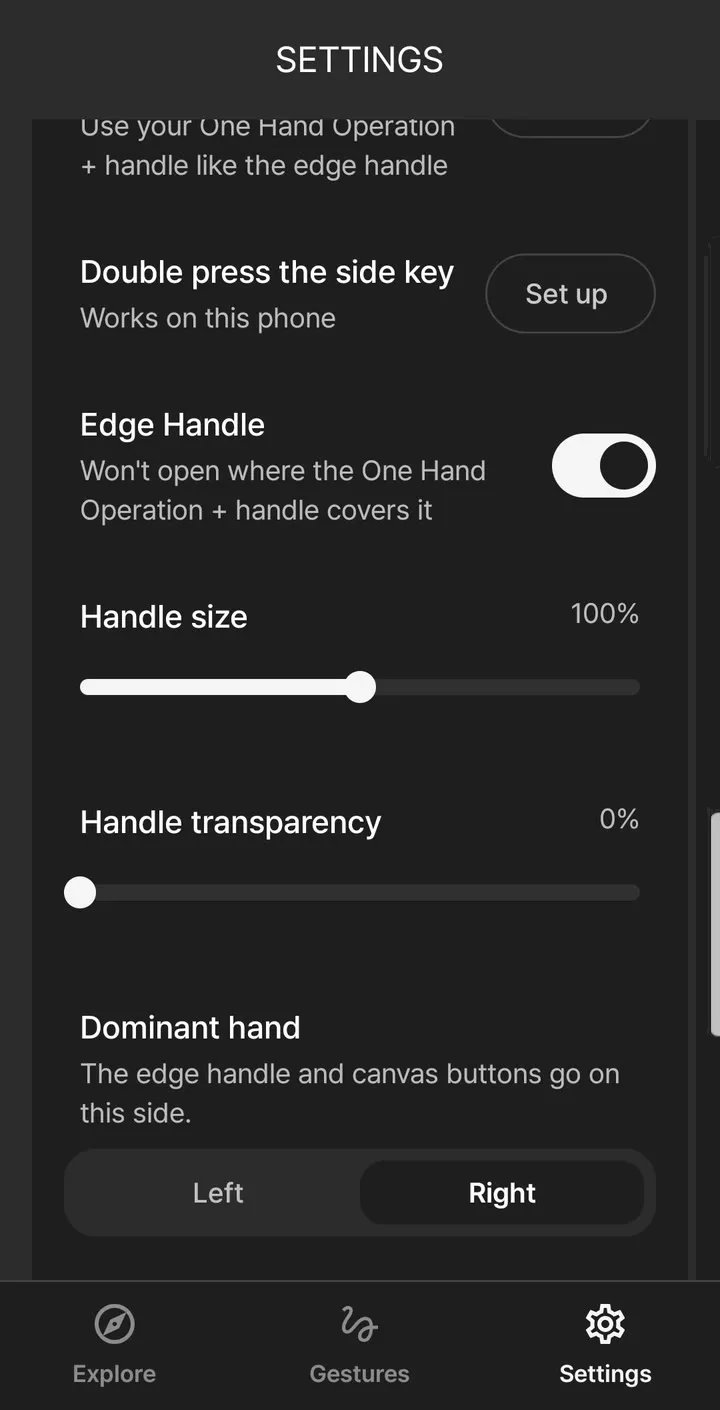
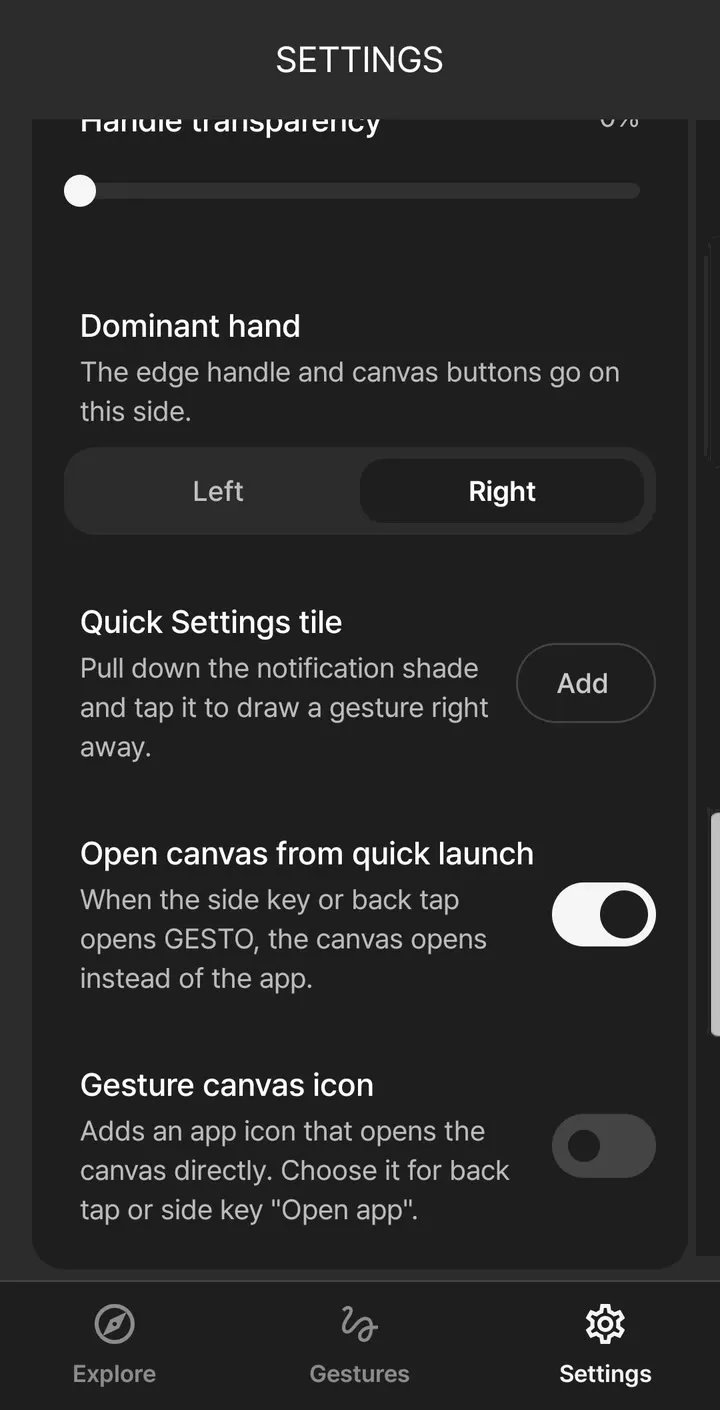
In the Settings tab, Edge Handle turns the handle on or off, and Handle size and Handle transparency change how it looks. Dominant hand moves the handle and canvas buttons to that side. Press and hold the handle, then drag, to move it right away.
-
2 Recognition delay
Gesture Delay under Gesture Behavior is how long GESTO waits after you lift your finger before recognizing. If letters with several strokes get cut off, raise it a little.

Open without the handle
-
1 Quick Settings tile and icon
Under Ways to open the canvas in Settings, tap Add next to Quick Settings tile to open the canvas from the notification shade. Turn on Gesture canvas icon for an app icon that opens the canvas directly, or long-press the GESTO icon and choose Gesture canvas.
-
2 Use your phone's buttons
You can link GESTO to a double press of the side key on Samsung, a double tap on the back on Pixel, or Quick Launch on Motorola. The method that fits your phone appears at the top of Ways to open the canvas with a Set up button.

Backup and sync
-
1 Sign in to sync
Sign in at the top of Settings to back up your gestures and keep your devices in step.
-
2 Export the list
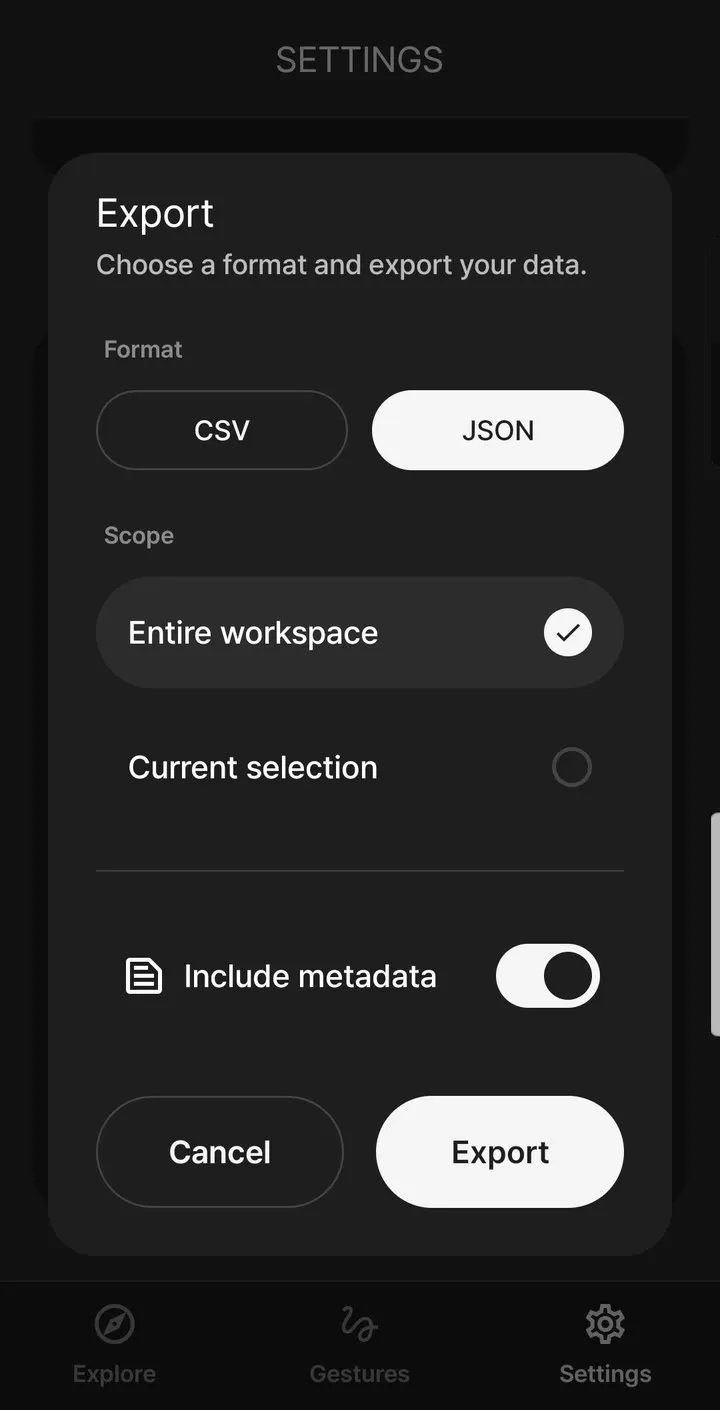
Export under System Controls saves your gesture list as a CSV or JSON file, and Import brings it back. The drawn shapes aren't in the file yet, so you need to redraw them after importing.

Troubleshooting
-
1 I can't see the handle
If a Complete setup card sits at the top of the Gestures tab, allow the permission or turn the handle on. On system screens such as Android Settings, security rules can hide the handle for a moment.
-
2 The handle doesn't respond on my Samsung phone
If the One Hand Operation + handle sits in the same spot, it takes the touch first. Move the GESTO handle somewhere else, or set up Use a One Hand Operation + gesture under Ways to open the canvas.
-
3 The wrong app opens
Draw the same shape a few more times (up to 8), or switch to a shape that looks less like your other gestures.
iPhone
The iPhone version is free on the App Store. It runs on iPhones with iOS 18 or later; screens show version 1.0.
First launch
-
1 Get started
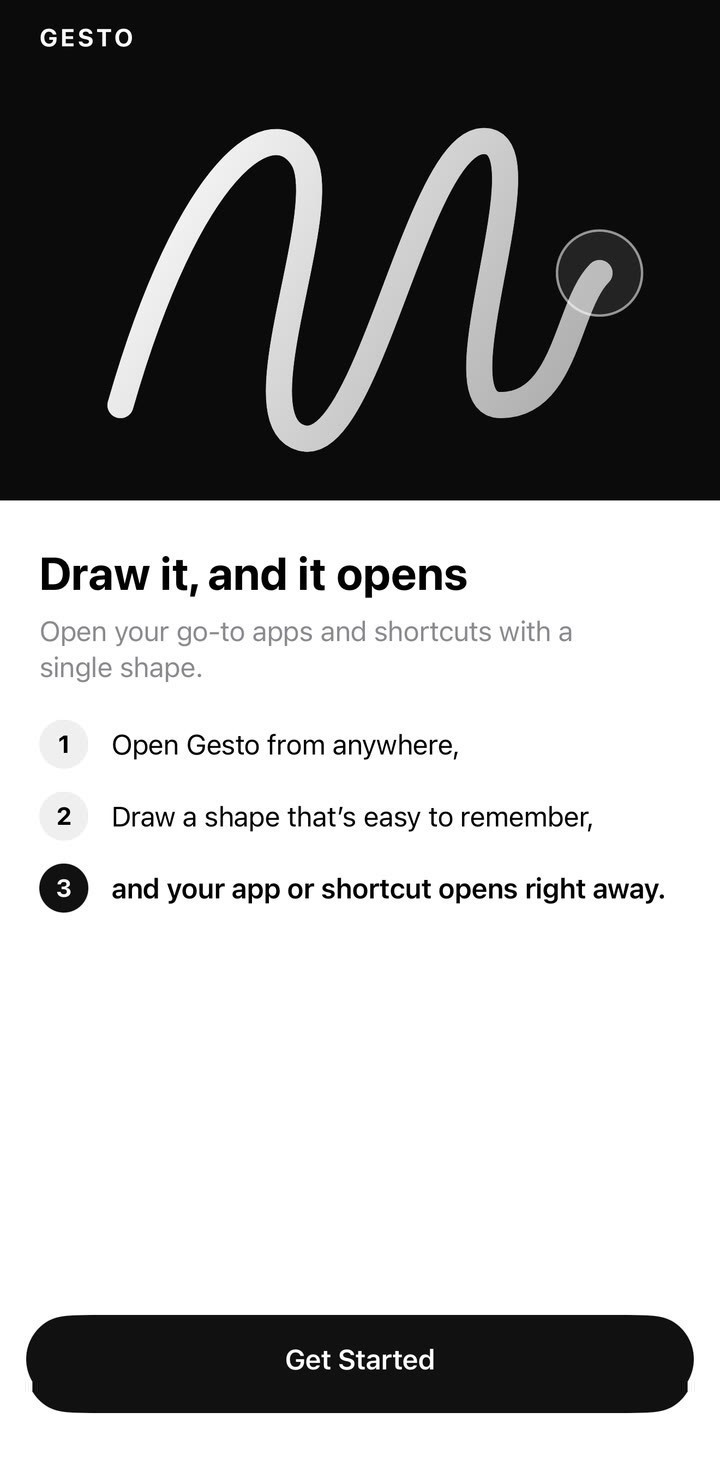
Open the app to see Draw it, and it opens. Tap Get Started to go to your gesture list. There are no permissions to allow.

Create a gesture
-
1 Choose what it opens
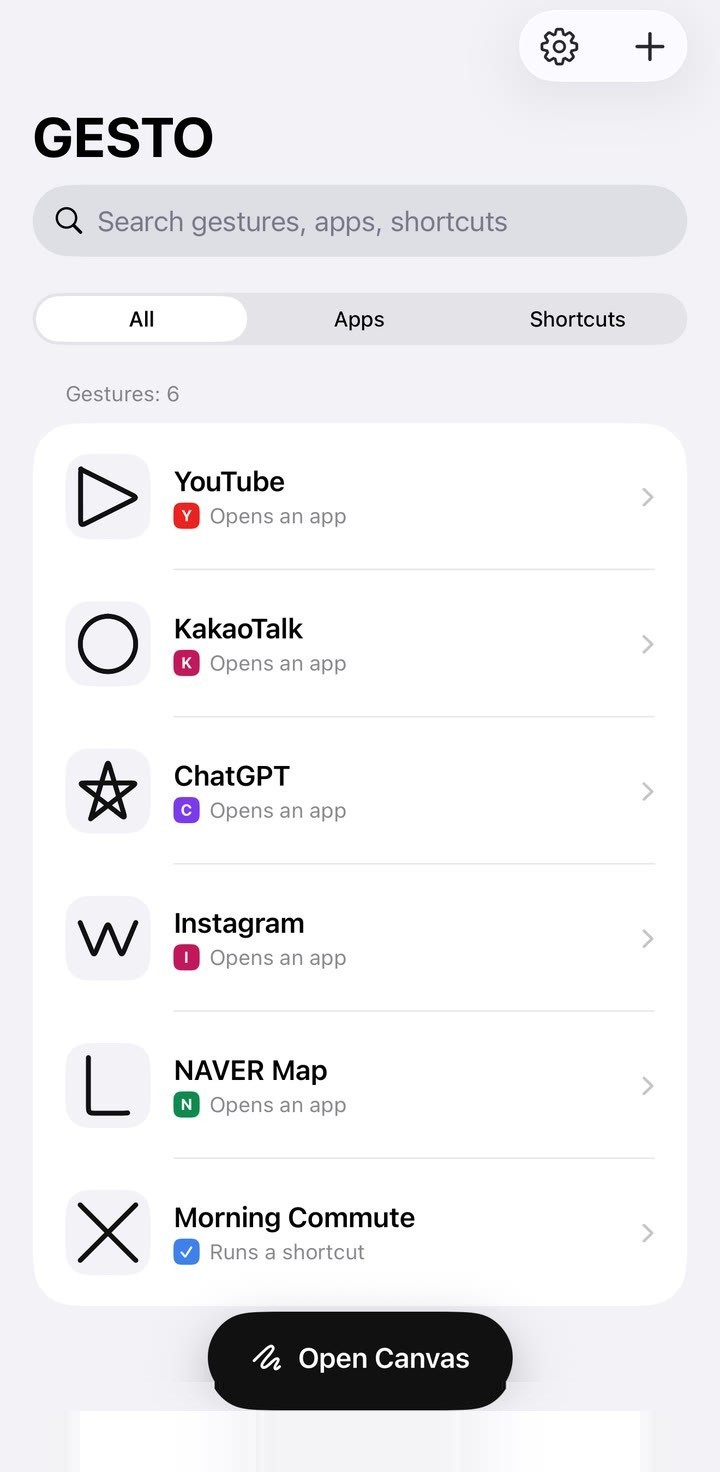
Tap + in the top-right corner of the list, then choose App or Shortcut under What should it open? Search apps by name from about 270 built-in apps.
-
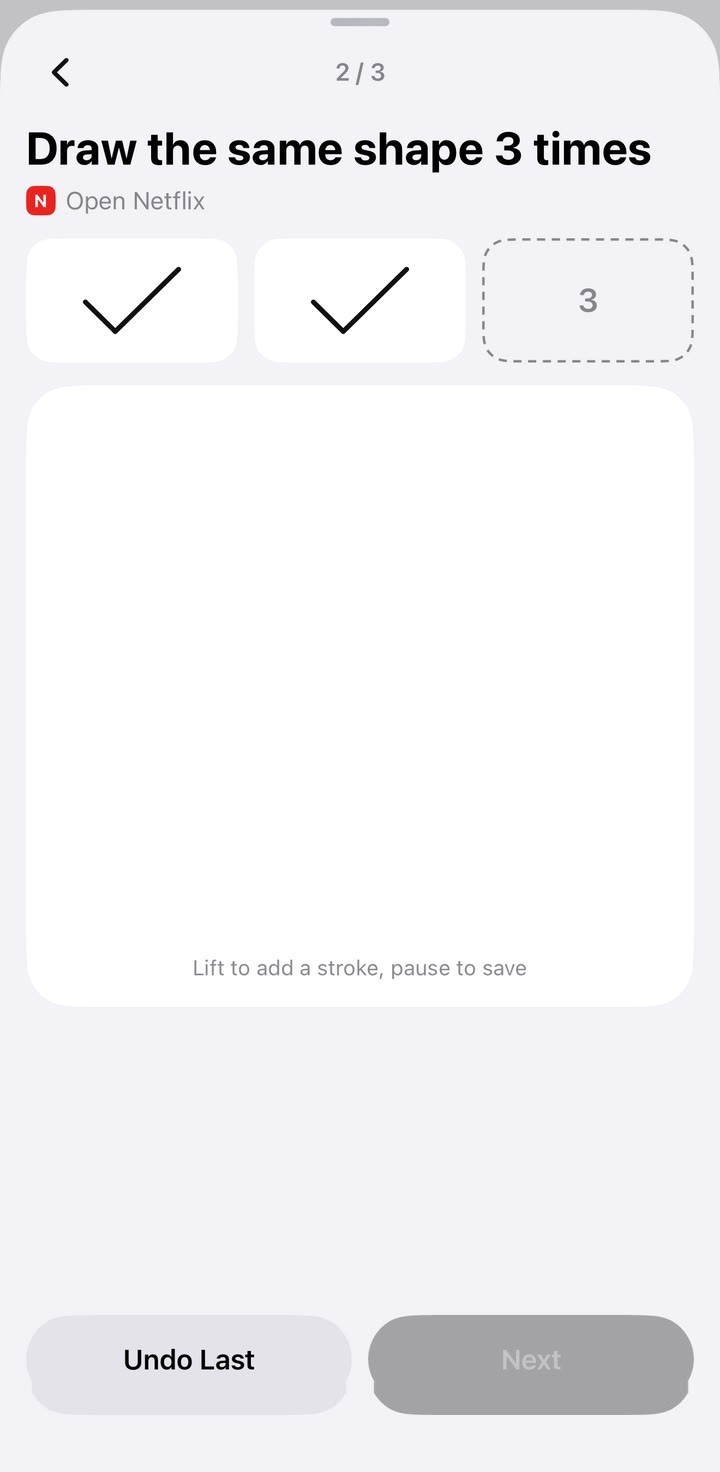
2 Draw the same shape 3 times
On Draw the same shape 3 times, draw your shape three times. Lift to add a stroke; pause to save.
-
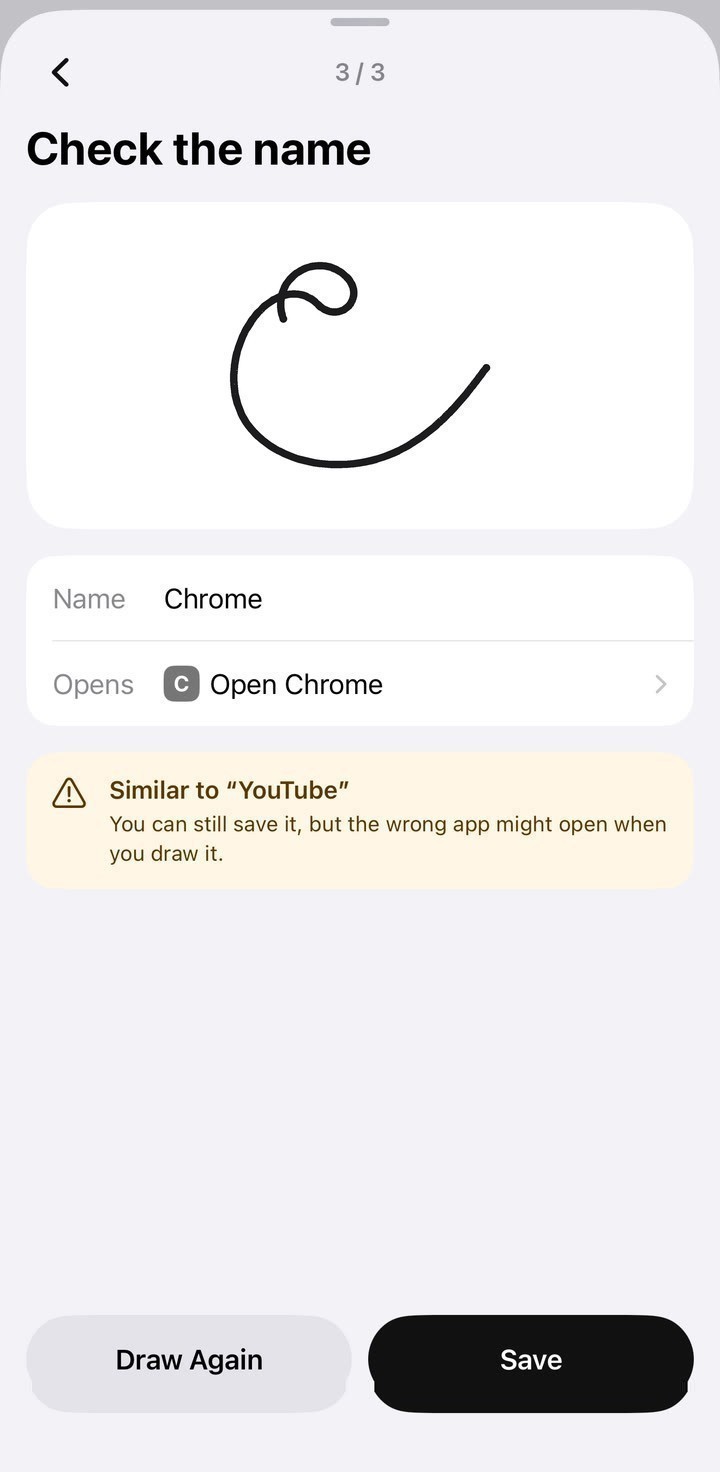
3 Check the name and save
On Check the name, confirm the name and what it opens, then tap Save. If it looks like a gesture you already have, you see a warning and can tap Draw Again.


Open it from anywhere
iOS doesn't let apps place a handle over other apps, so you open the Gesto Canvas from places your iPhone already provides. Setting up just one is enough, and the same steps are in the app under Settings > Open from Anywhere Guide.
-
1 Action Button
Press and hold the Action Button to open it right away. Available on iPhone 15 Pro and later models with an Action Button.
- In Settings, search for “Action Button” and open it.
- Swipe to “Controls”, then tap “Choose a Control”.
- Choose “Gesto Canvas”.
-
2 AssistiveTouch
Open it from anywhere with a floating on-screen button.
- Add the “Open Gesto Canvas” shortcut in the Shortcuts app.
- In Settings, search for “AssistiveTouch” and turn it on.
- Under “Custom Actions”, set “Single-Tap” to “Open Gesto Canvas”.
-
3 Back Tap
Double- or triple-tap the back of your iPhone to open it.
- Add the “Open Gesto Canvas” shortcut in the Shortcuts app.
- In Settings, search for “Back Tap” and open it.
- Choose “Double Tap” or “Triple Tap”.
- Choose “Open Gesto Canvas” from the shortcuts list.
-
4 Control Center
Swipe down from the top-right corner, then tap once to open it.
- Swipe down from the top-right corner to open Control Center.
- Tap the + in the top-left corner, then tap “Add a Control”.
- Search for “GESTO” and add “Gesto Canvas”.
-
5 Lock Screen Control
Put it where the flashlight or camera button sits on the Lock Screen.
- Touch and hold the Lock Screen, then tap “Customize”.
- Choose “Lock Screen”, then tap the − on a bottom control to remove it.
- Tap the + in the empty spot and choose “Gesto Canvas”.
Draw to open
-
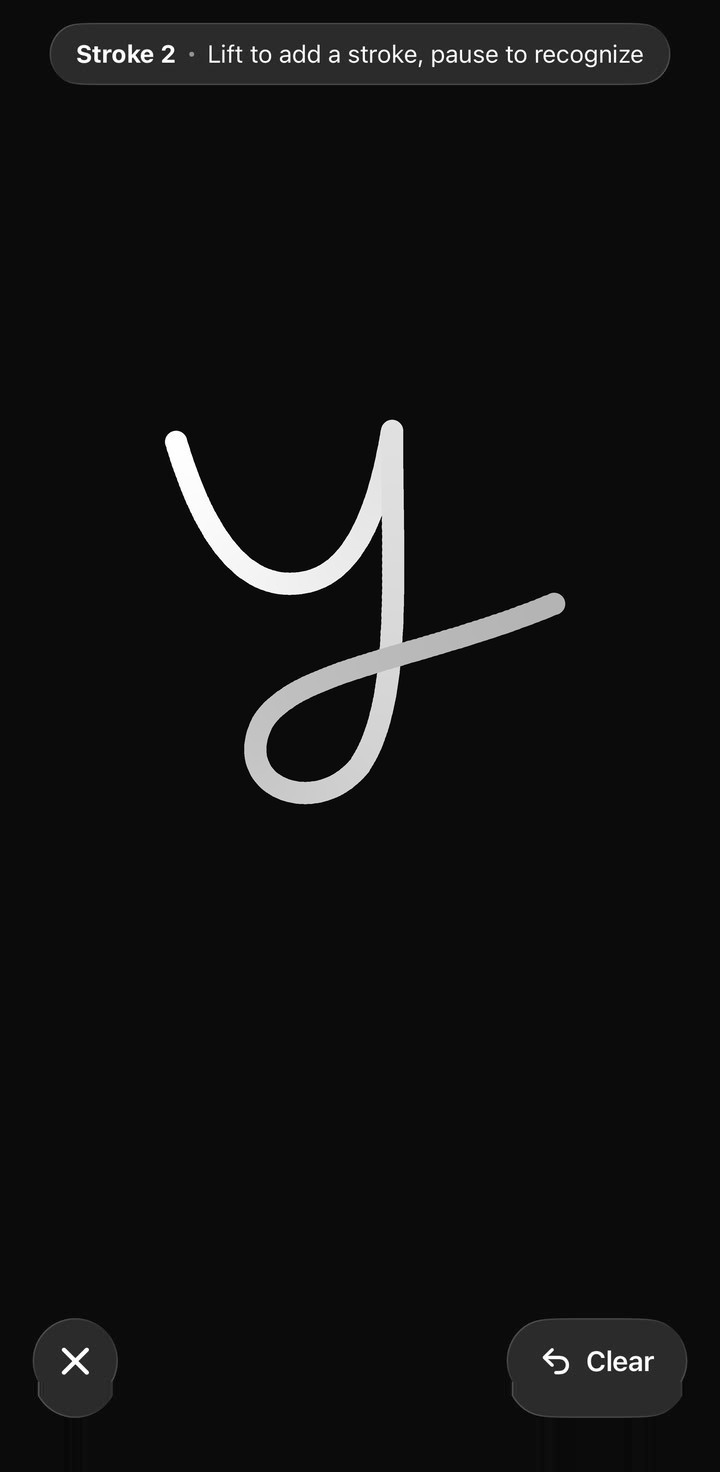
1 Draw on the canvas
Open the Gesto Canvas from the place you set up and draw your shape. Lift to add a stroke; pause to recognize.
-
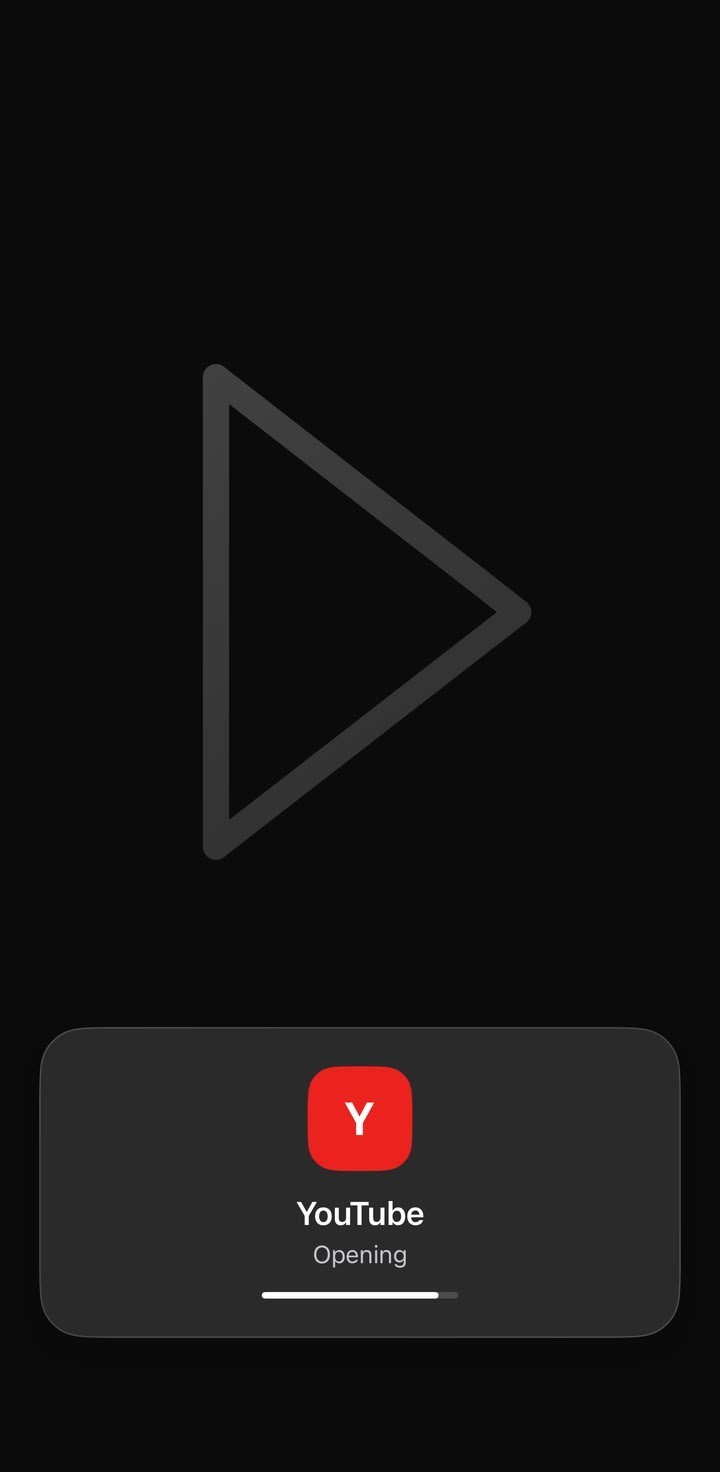
2 It opens right away
When GESTO finds your gesture, the app opens with an Opening card. If nothing matches, choose Draw Again or Save This Shape.
-
3 Open an app that isn't listed
In the Shortcuts app, make a shortcut with a single Open App action. When you create a gesture, choose Shortcut and enter the name exactly as it appears in Shortcuts.


Drawing settings
-
1 Strokes and recognition delay
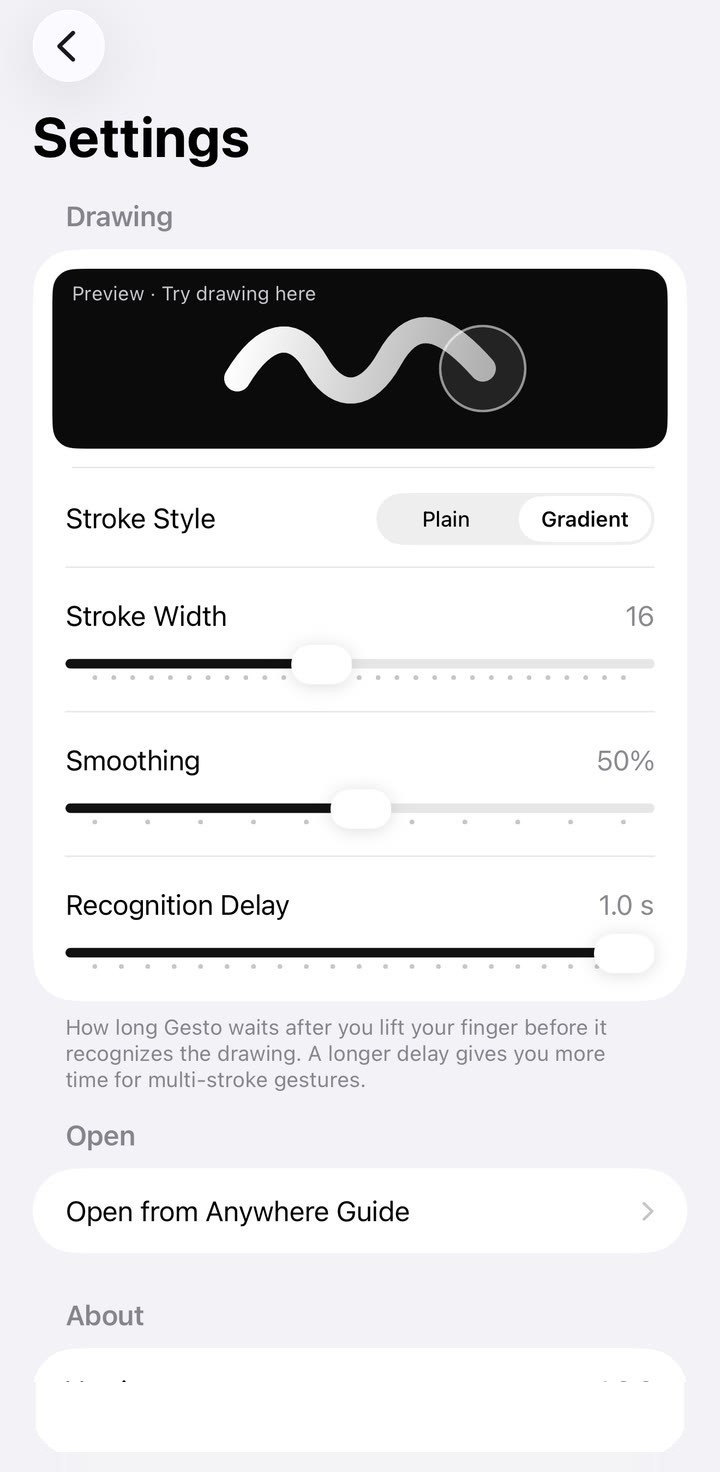
In Settings you can change Stroke Style, Stroke Width, Smoothing, and Recognition Delay. If shapes with several strokes get cut off, raise Recognition Delay.